


Introduction
When you synchronize your Active Directory objects to Entra ID, sometimes an attribute is no longer useful or contains a value that has become unnecessary.
The natural reflex is then to want to modify or delete it directly in the cloud, whether through the Entra portal or via PowerShell.
Problem: for objects synchronized from AD, Entra ID refuses this type of modification and returns an error related to synchronization.
In this article, you'll see how to properly reset an attribute to null via Entra Connect Sync.
Modifying an attribute from Entra ID for a synchronized object
When a user object is synchronized from Active Directory, some of its properties are marked as synchronized in Entra ID.
Concretely, this means that:
- The source of authority is Active Directory, not Entra ID.
- Any attempt to modify directly in Entra ID will be refused.
- Updates must go through the synchronization connector (Entra Connect Sync / Azure AD Connect).
If you try to change an attribute in Entra ID anyway (for example via Update-MgUser in PowerShell), you get the error message:
Unable to update the specified properties for on-premises mastered Directory Sync objects or objects currently undergoing migration.
The logic here is simple: as long as the attribute is considered synchronized, Entra ID expects the update to come from Active Directory via the synchronization engine, not from the cloud.
Setting the null value on a synchronized attribute
How it works
To reset an attribute to null in a synchronization scenario, Entra Connect Sync provides a specific feature: the AuthoritativeNull expression.
AuthoritativeNull is a special value used in synchronization rules. When applied to an attribute, it tells the synchronization engine:
The value of this attribute must be considered intentionally empty, even if a value exists in the source.
The expression is used in a synchronization rule in Entra Connect Sync.
The general idea:
- You identify the objects and/or conditions for which the attribute must be reset to
null. - In the transformation of the target attribute, you use
AuthoritativeNullas the output value when the condition is met.
At the next synchronization execution, the engine will:
- apply
AuthoritativeNullto the attribute; - propagate this reset to zero in Entra ID.
Depending on your scenario, this can be set as inbound or outbound:
- Inbound (
AuthoritativeNullin inbound rule) - The attribute is set to
nullupon entry into the metaverse (metaverse = storage area that contains aggregated information from multiple connected data sources, providing a single global and integrated view of all combined objects). - For this attribute, the metaverse considers the reference value to be empty.
- All outbound rules that rely on this attribute will also see
null. - Useful if you want the attribute to be functionally removed everywhere (all connected targets).
- Outbound (
AuthoritativeNullin outbound rule to Entra ID) - The metaverse can still retain a value for the attribute.
- You force the
nullvalue only on the Entra ID side at the output. - Useful if other systems still consume this attribute but you no longer want it to be exposed in Entra ID only.
Creating a synchronization rule to delete the value of an attribute
In my example, I'm using an inbound type rule.
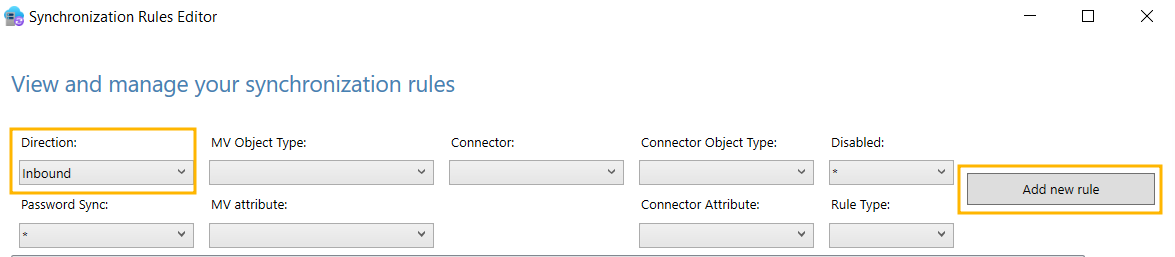
Open Synchronization Rules Editor.
Verify that Direction = Inbound then click Add New Rule.
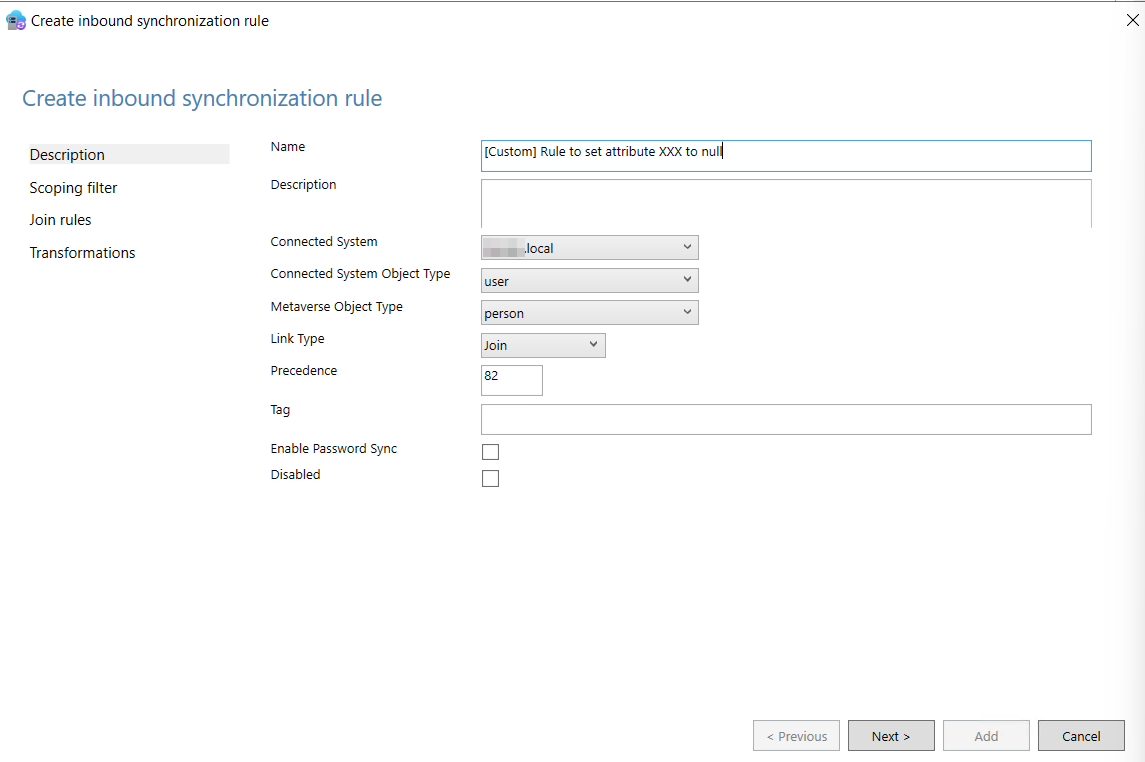
Fill it in as shown in the screenshot and set a precedence value lower than 100.
The Connected system is your Active Directory.
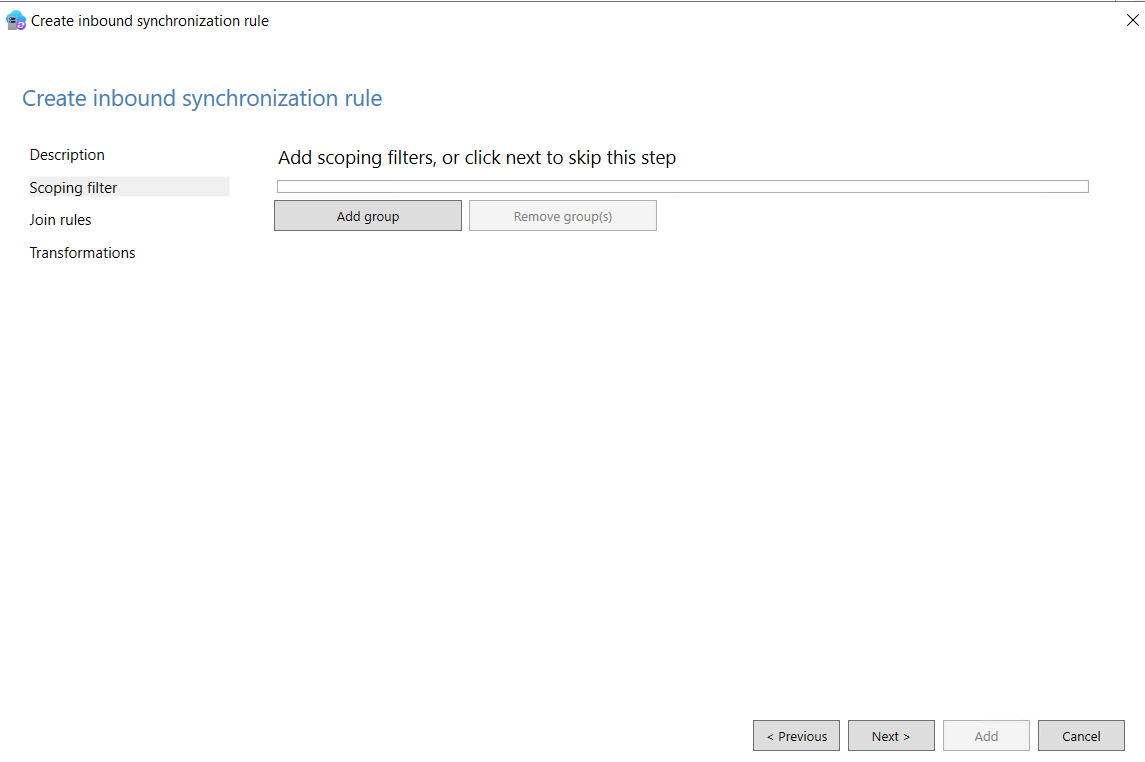
Scoping filter: enter a filter if needed. In my example, I do not configure any, which means all synchronized user objects will be affected.
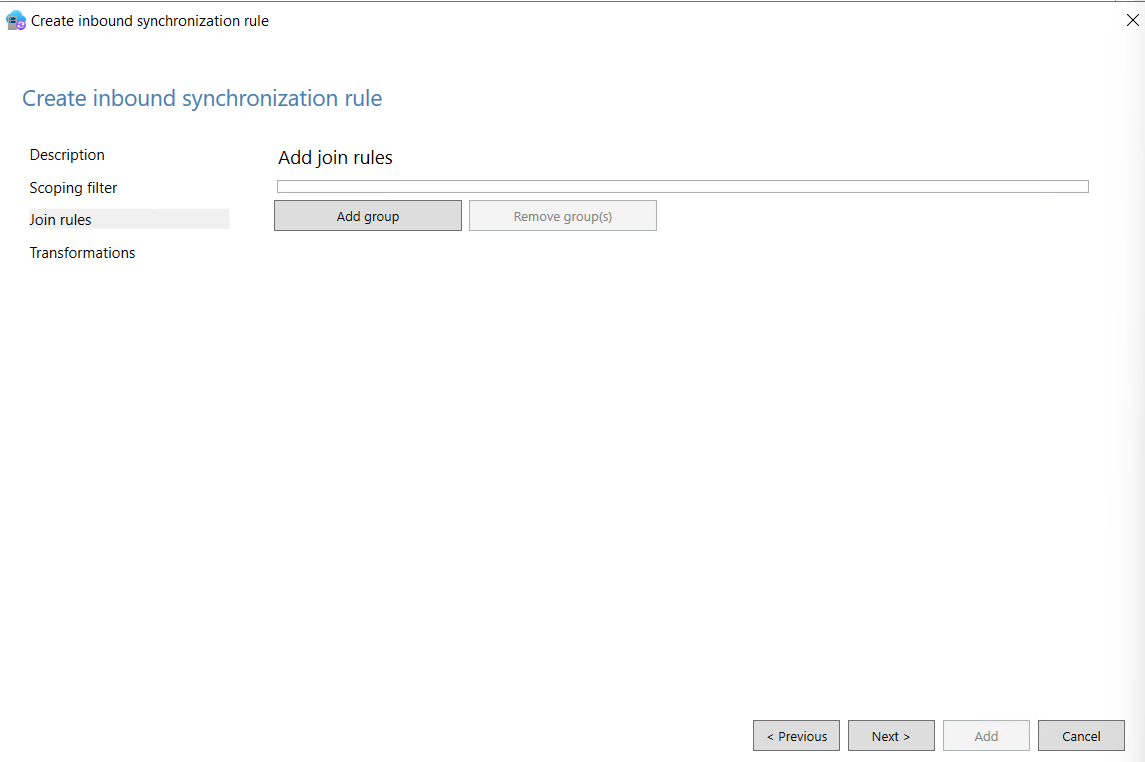
Join Rules : leave empty.
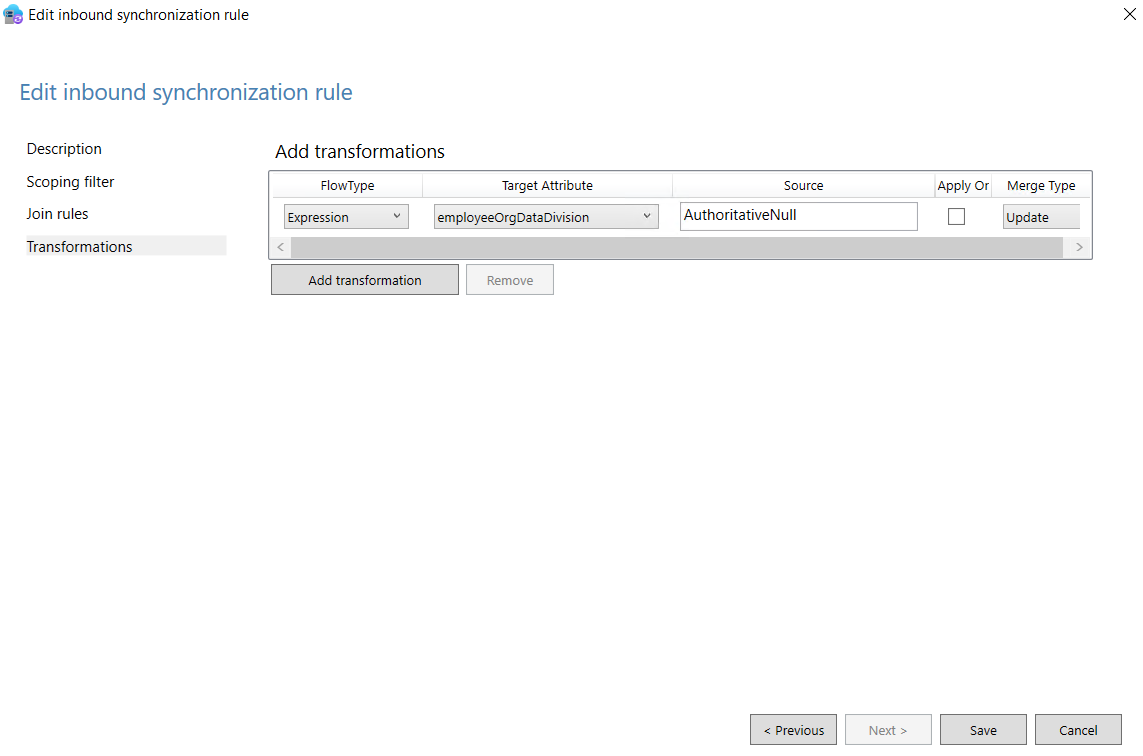
Transformation :
- FlowType: Expression
- TargetAttribute: <select your attribute>
- Source : AuthoritativeNull
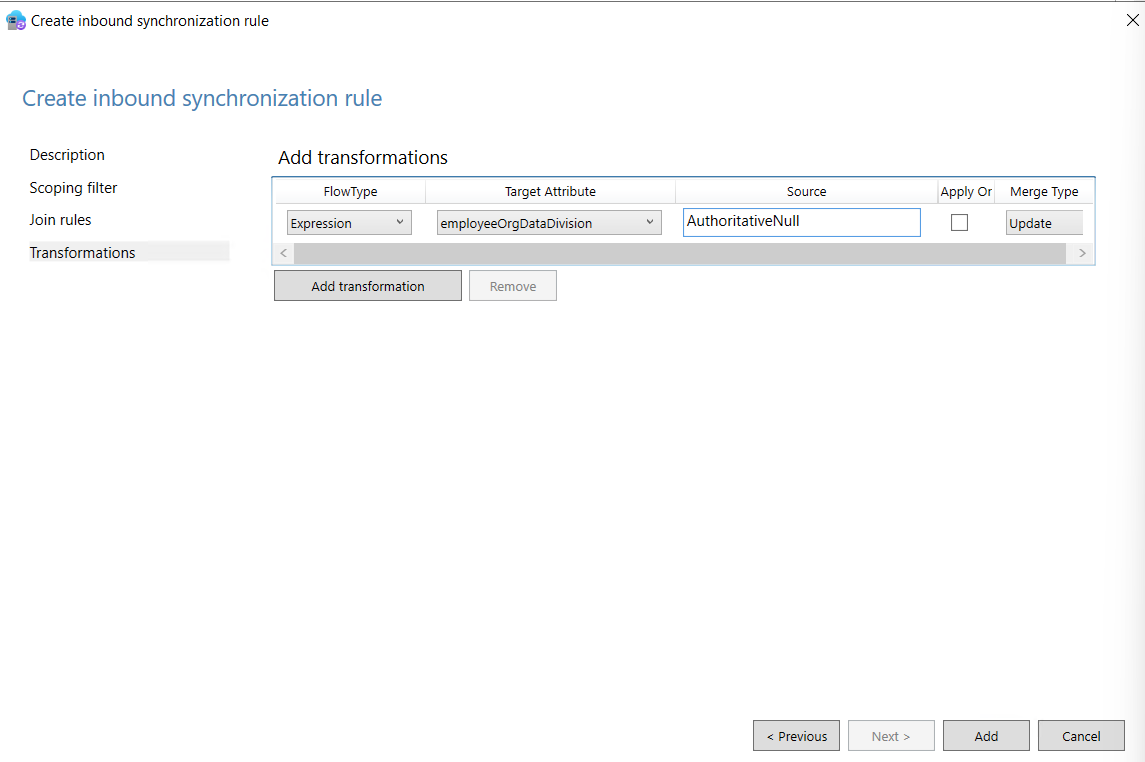
Click Add.
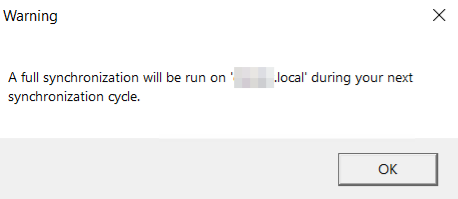
A message appears indicating that there will be a full synchronization of the AD connector during the next sync. This message is for information only.
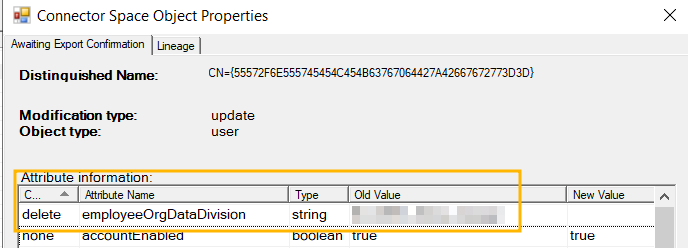
At the next automatic synchronization, the attribute will be removed.
In the Export xxx.onmicrosoft.com - AAD task, you can see the attribute is removed. It is also removed in Entra ID.


Comments