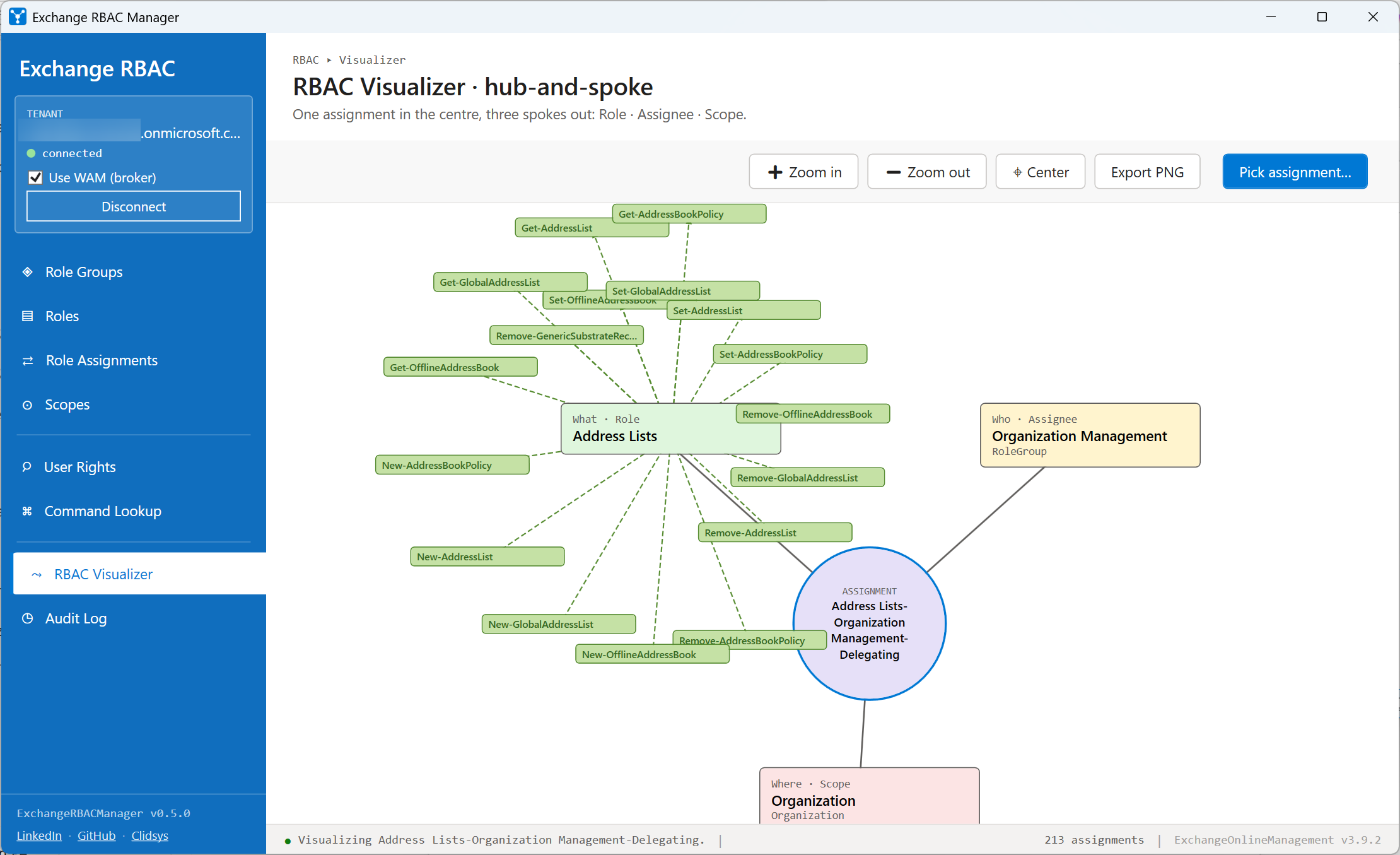
Exchange RBAC Manager: a GUI to explore and manage Exchange Online RBAC

Table of Contents
No matching heading
Exchange Online RBAC is powerful, but day to day it still boils down to chaining Get-RoleGroup, Get-ManagementRoleAssignment, Get-ManagementScope and friends by hand to figure out who has what, why, and through which path - then carefully crafting a New- or Set- cmdlet when you need to change something.
Exchange RBAC Manager is a PowerShell module that opens a Fluent-styled Windows GUI and exposes both sides of the workflow: read (inspect, audit, visualize) and write (create, edit, delete role groups, roles, assignments and scopes). Every write action runs through a preview step that shows the exact cmdlet before anything hits Exchange.
The module is designed to target both Exchange Online and Exchange Server on-premises: the underlying cmdlets (Get-RoleGroup, Get-ManagementRoleAssignment, Get-ManagementScope, …) are the same between the two products. Exchange Online is wired up today, on-premises support is on the roadmap (the connection layer already exposes a dedicated entry point, the implementation is in progress).
Module on the PowerShell Gallery. Source, issues and feature requests on GitHub.
Install
Install-Module -Name ExchangeRBACManager -Scope CurrentUser
Import-Module ExchangeRBACManager
Invoke-ExchangeRBACManager
Requirements:
- Windows PowerShell 5.1 or PowerShell 7+
ExchangeOnlineManagement(auto-installed on first launch if missing)- An Exchange Online tenant and an account with the right RBAC role: at minimum View-Only Organization Management for read scenarios, Organization Management if you intend to use the write actions
On launch, clicking Connect to Exchange Online triggers a standard Connect-ExchangeOnline flow with MFA. The tenant banner turns green and each section loads its data on demand.
The headline feature: RBAC Visualizer
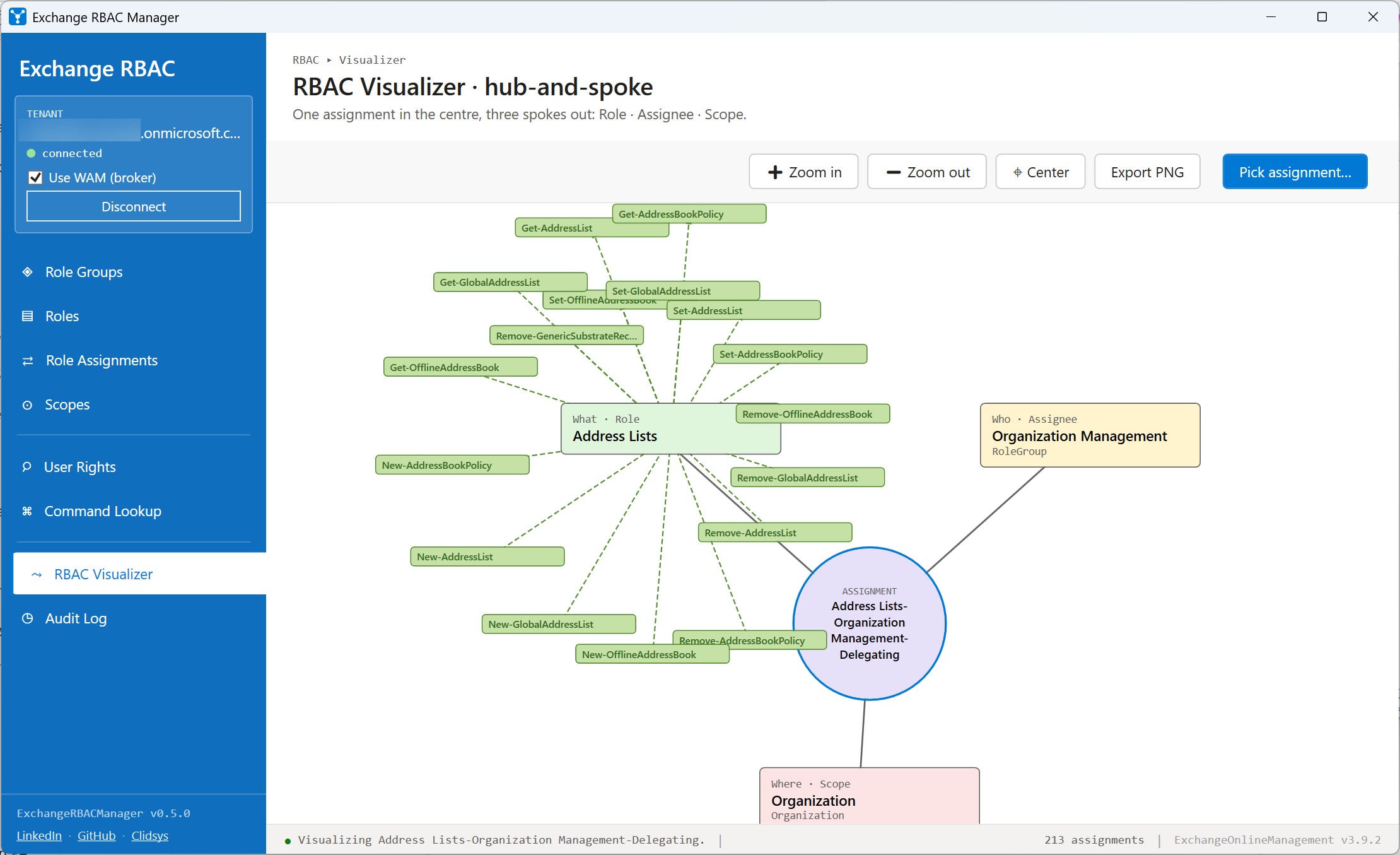
Exchange RBAC is a triangle: what (a role), who (an assignee) and where (a scope). The Visualizer turns any role assignment into a hub-and-spoke diagram so you can answer those three questions in one glance instead of cross-referencing four cmdlets:
- Centre (purple) - the assignment itself
- Top-left (green) - the Role it grants (the what)
- Top-right (yellow) - the Assignee it applies to (the who)
- Bottom (pink) - the Scope it is restricted to (the where)
PNG export included, so the diagram drops straight into a ticket, a change-management doc or an audit report.
The eight sections
Each section wraps a specific Exchange RBAC cmdlet (or a composition of them) and exposes the same toolbar pattern: live search, chip filters, Refresh, Export CSV, plus contextual actions on selected rows.
Role Groups
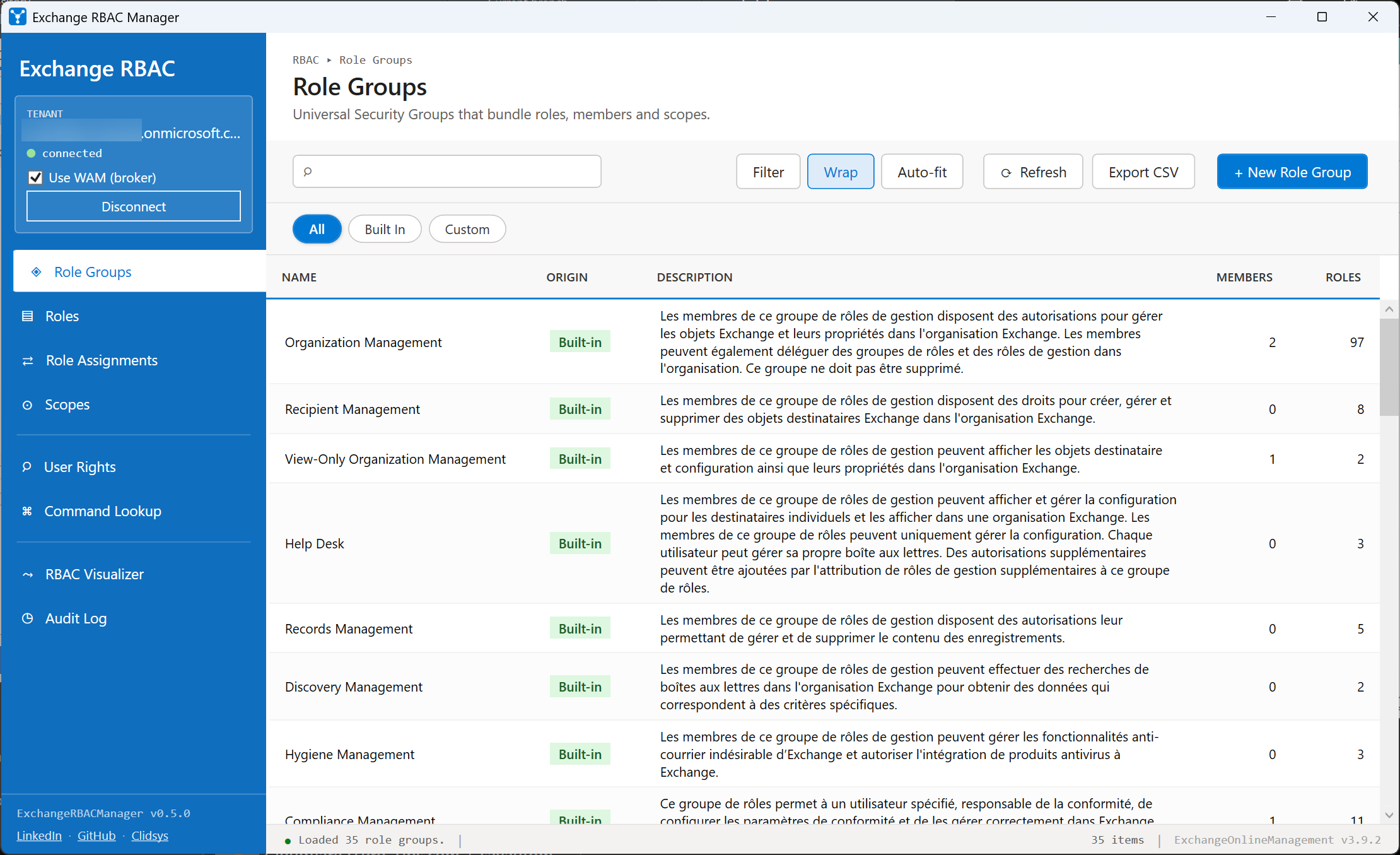
Backed by Get-RoleGroup. Lists every Universal Security Group that bundles management roles with members and scopes. The grid shows the group name, an Origin badge (Built-in vs Custom), the number of members and roles bound to it, and the description.
From the action bar you can create a new role group (New-RoleGroup), edit an existing one (Set-RoleGroup), update its membership (Update-RoleGroupMember) or remove it (Remove-RoleGroup). Each action opens a dialog that ends on a Preview cmdlet step before executing.
Roles
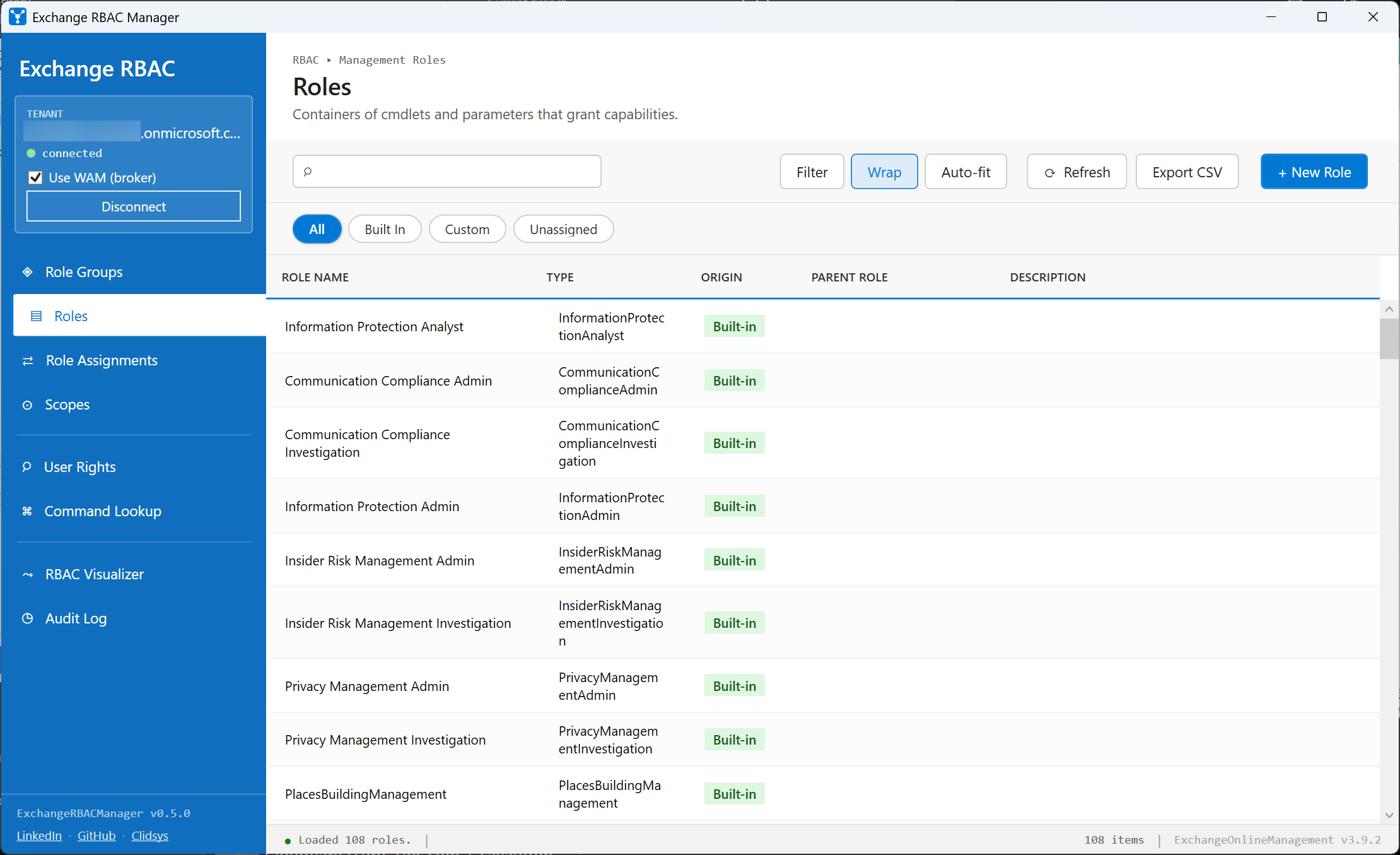
Backed by Get-ManagementRole. A management role is the smallest container of cmdlets and parameters that grant a capability. The grid shows the role name, its Type (regular vs unscoped), an Origin badge (Built-in vs Custom), the Parent role it derives from, and the description.
Create custom roles (New-ManagementRole from a parent), trim them with Add-ManagementRoleEntry / Remove-ManagementRoleEntry, rename them with Set-ManagementRole, or delete them with Remove-ManagementRole - all from the contextual actions bar.
Role Assignments
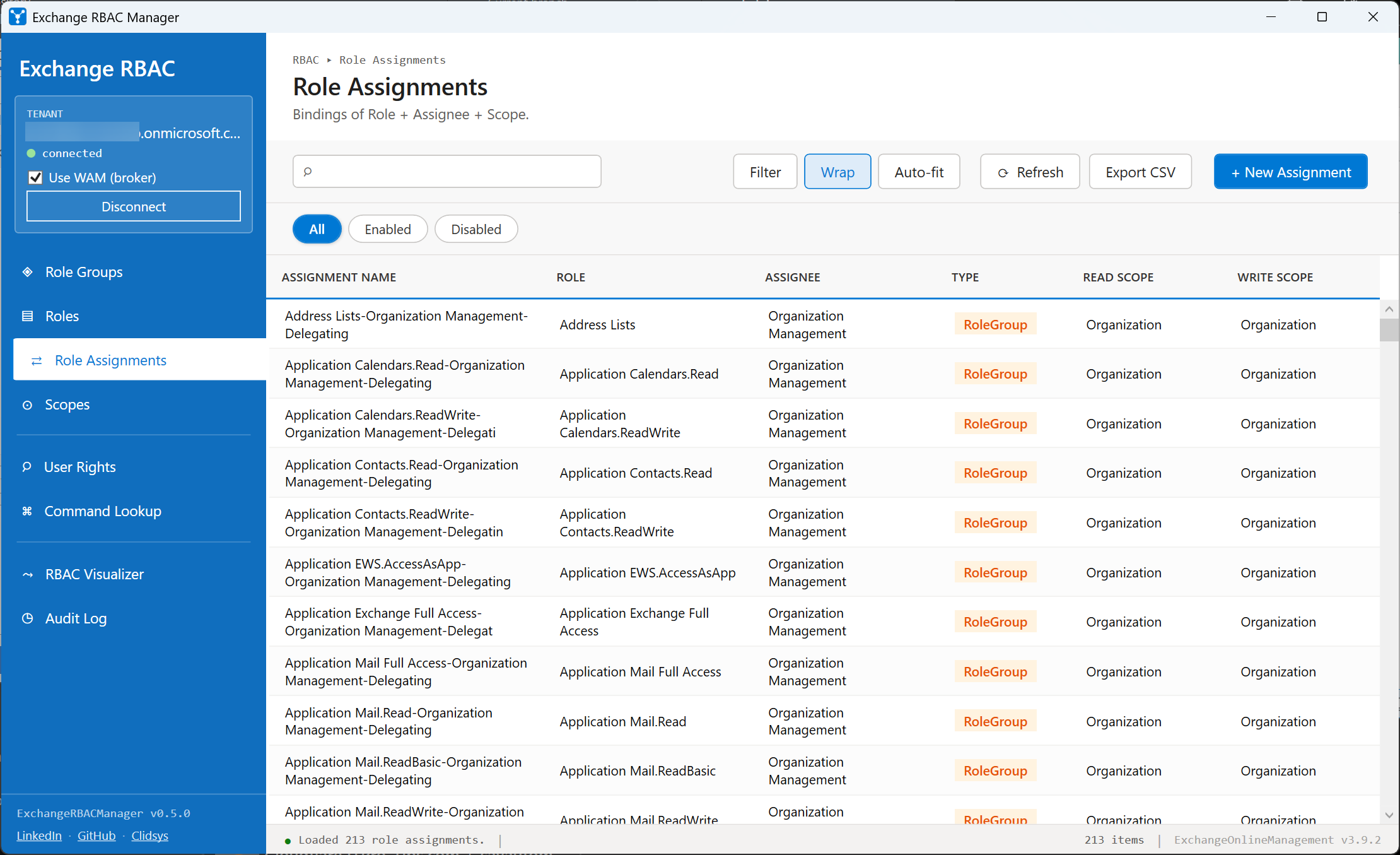
Backed by Get-ManagementRoleAssignment. The actual binding that ties a Role to an Assignee (user, role group, USG or policy) within a Scope. The grid shows the assignment name, the role, the assignee, the assignee type, and both the read and write scopes.
The workhorse view: most "why does this user have access?" questions are answered here. Selecting an assignment lights up Visualize in the floating action bar so you can jump directly to the diagram, and you can spawn a new assignment (New-ManagementRoleAssignment) or revoke an existing one (Remove-ManagementRoleAssignment).
Scopes
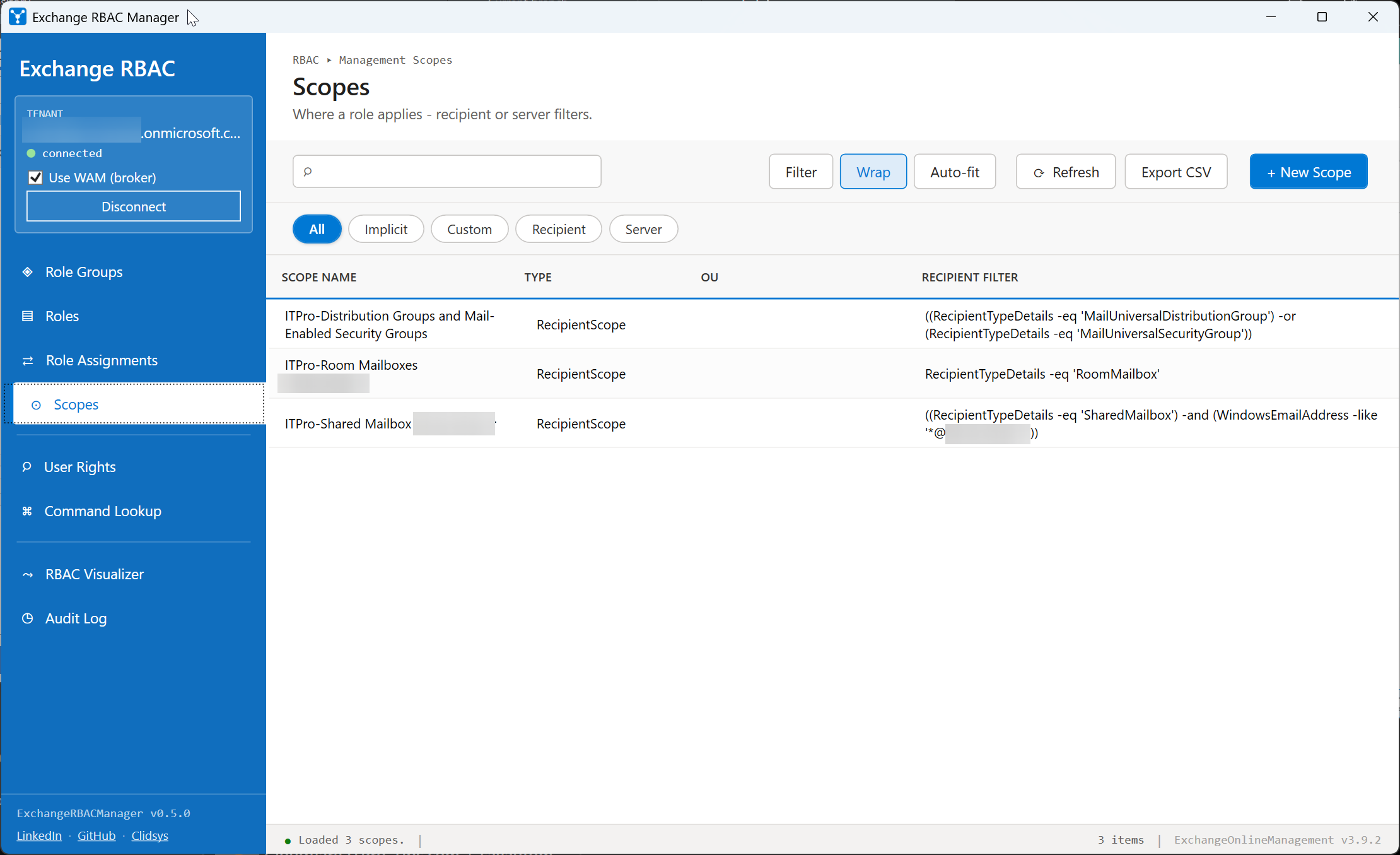
Backed by Get-ManagementScope. Scopes restrict a role assignment to a subset of recipients, servers or databases. The grid shows the scope name, the restriction type, the recipient root and the recipient filter expression.
Create custom scopes (New-ManagementScope), edit the filter (Set-ManagementScope) or remove them (Remove-ManagementScope). Filter writing is where mistakes happen, so the next section exists to protect you.
Scope membership preview
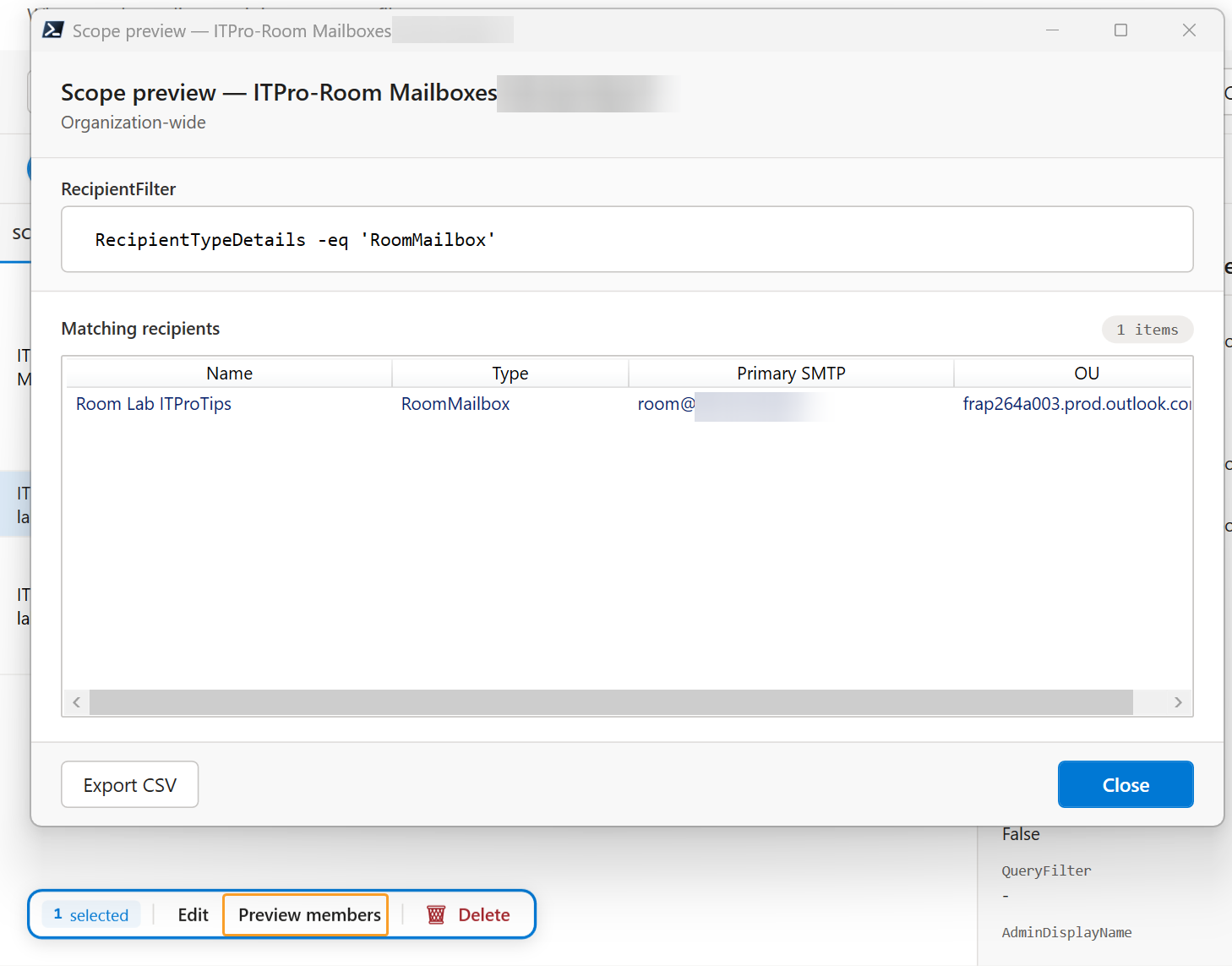
In the Scopes section, select a scope and click Preview members in the floating action bar. The module runs Get-Recipient -RecipientPreviewFilter <scope filter> and shows you exactly which recipients fall inside that scope's filter.
The point is to validate a RecipientRestrictionFilter before you attach it to a role assignment - so you never end up granting "Mailbox Import Export" against a scope that turns out to match the entire tenant. Results are capped to a safe number of rows and labelled as truncated if the scope matches more.
User Rights
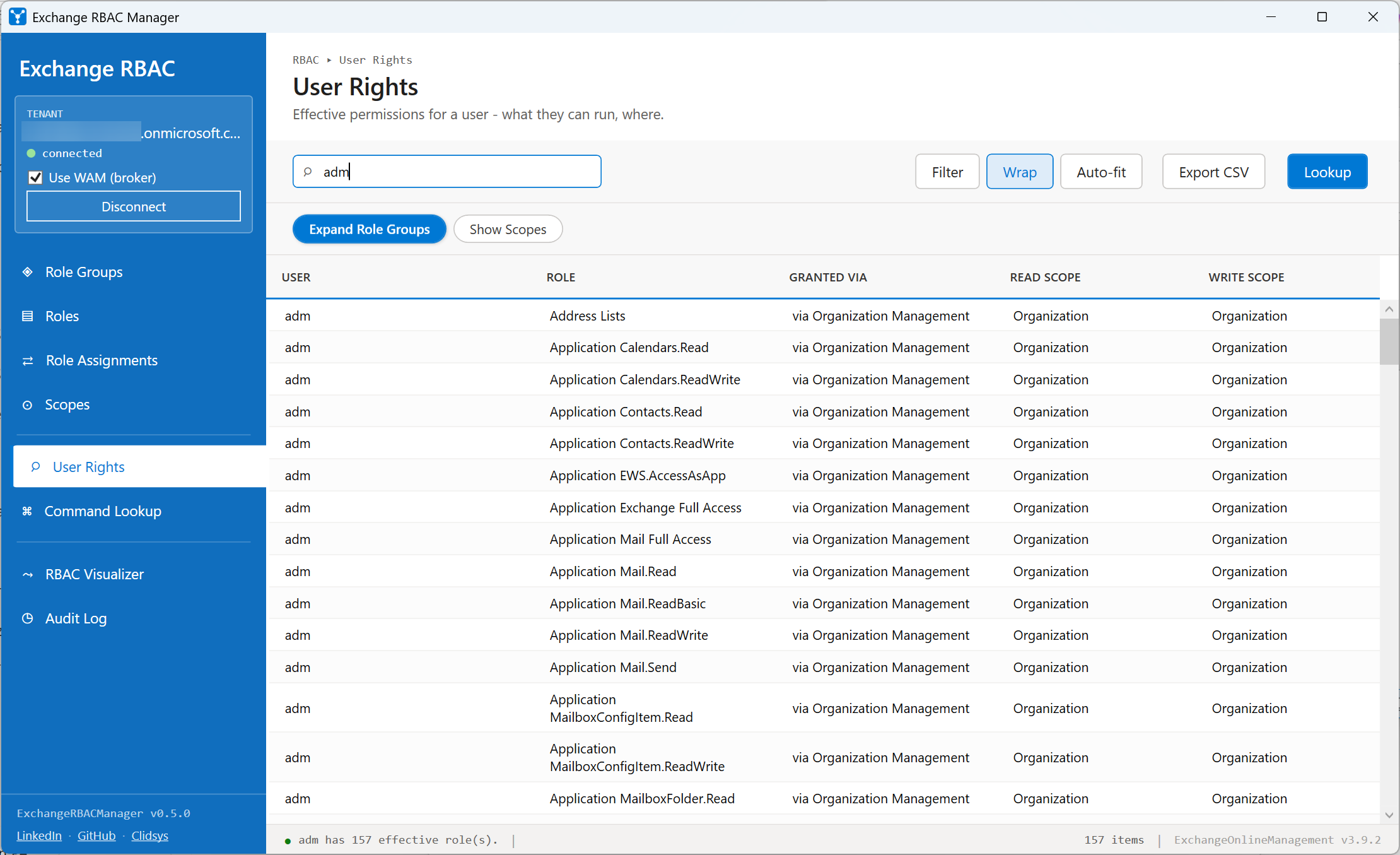
Type a UPN or alias, press Enter, and the module:
- Walks every cached
Get-ManagementRoleAssignment. - For each
RoleGroupassignee, expandsGet-RoleGroup -Identity ... | Members. - Returns every effective role plus how it was granted (direct vs via group) plus read and write scopes.
Useful before/after onboarding, offboarding, or to answer "why does this user have access to X?". Also the right view to confirm a privileged user has no leftover assignments after a role rotation.
Command Lookup
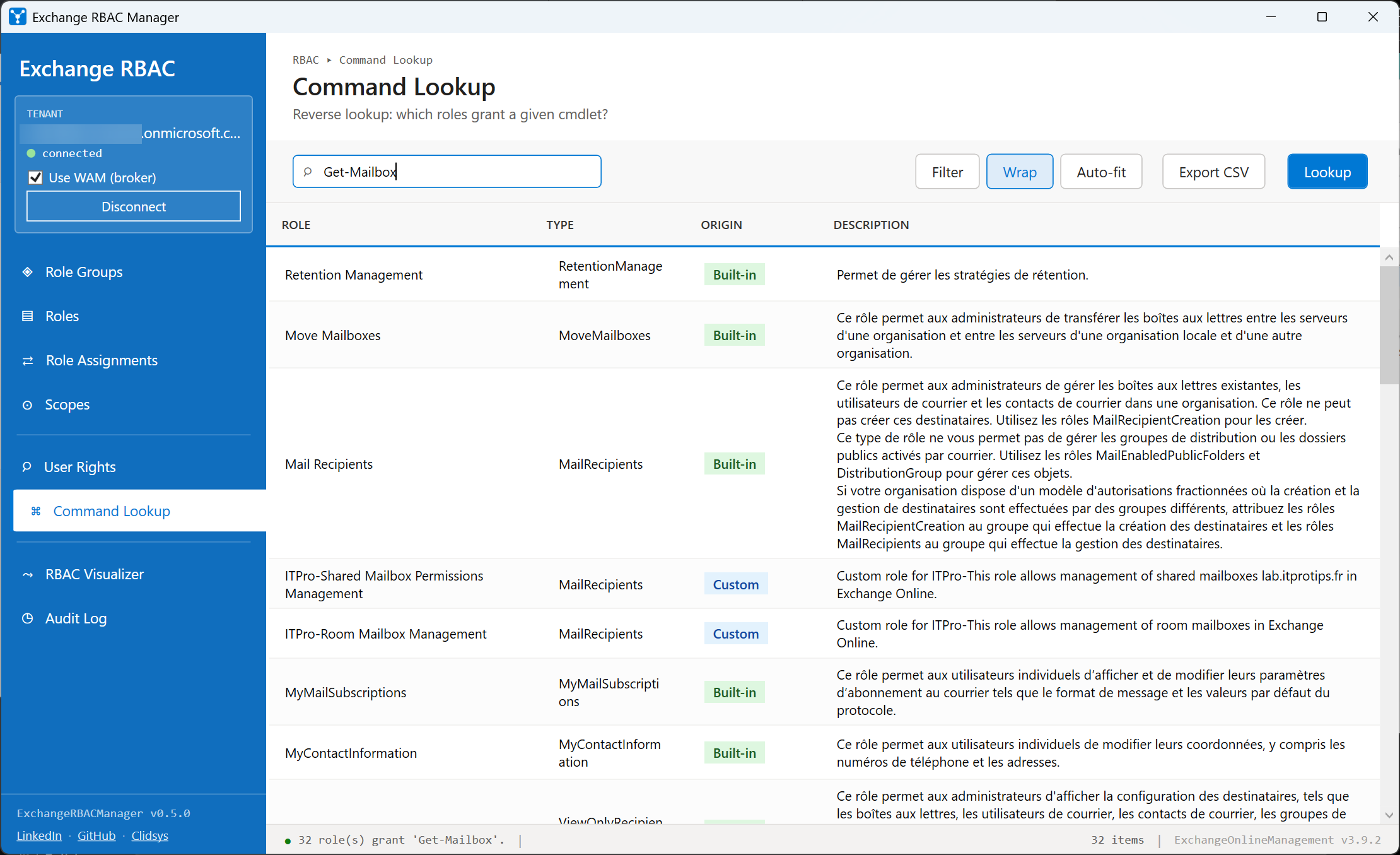
Type a cmdlet name (Set-Mailbox, New-MailboxExportRequest, …) and press Enter. The module calls Get-ManagementRole -Cmdlet <cmdlet> and returns every role that grants it, with type, origin (Built-in / Custom) and description.
The reverse of every other section: instead of starting from a role and finding its cmdlets, you start from a cmdlet and find which role(s) would let a user run it. Indispensable when an admin reports "I get an access denied on Set-MailboxRegionalConfiguration" and you have to figure out which role is missing.
Audit Log
Planned for a future release. The section currently shows a "coming soon" notice. The implementation will call Search-AdminAuditLog over the last 7 / 30 / 90 days (limit imposed by Exchange Online) and surface recent admin changes - caller, cmdlet, target object, parameters.
Safety net: cmdlet preview on every write
Every write action - create, edit, delete, membership update - ends on the same dialog that shows the exact PowerShell cmdlet that will run, with quoted parameters, before you click Run cmdlet. Three buttons:
- Run cmdlet executes against the live tenant.
- Copy cmdlet copies the preview text to the clipboard so you can paste it into a change-management ticket and run it manually later.
- Cancel drops the action.