Connect to Azure VMs using Azure Bastion: RBAC, group nesting and a PowerShell helper

Table of Contents
No matching heading
Azure Bastion is a managed jump-host service that lets you connect to Azure virtual machines over RDP or SSH without assigning them a public IP address, configuring a VPN, or installing an agent on the VM. Connections are established securely over TLS through the Azure portal or a native client tunnel.
This article covers:
- What Azure Bastion is and why you may want to use it
- The RBAC permissions required to open a Bastion session
- A group-nesting model that keeps role assignments simple and auditable
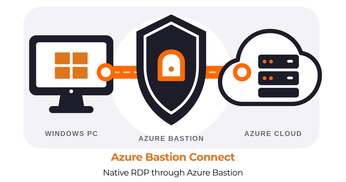
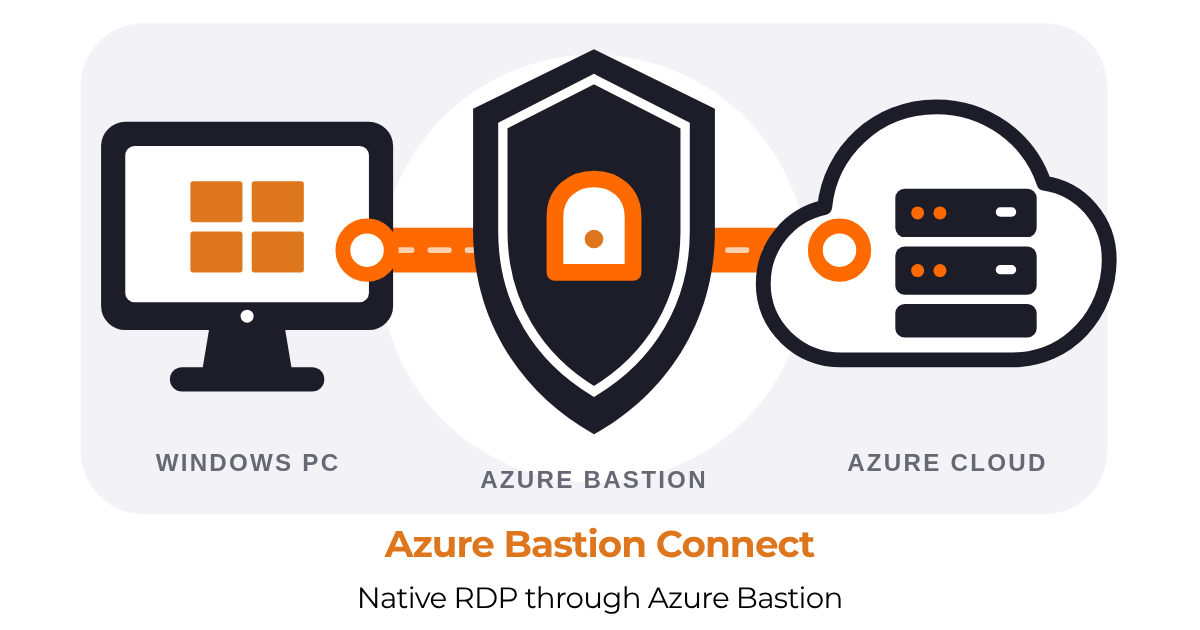
- AzBastionConnect for launching native RDP connections through Azure Bastion, delivering an experience similar to connecting to an on-premises server or directly to a VM through a public IP address. All traffic is still routed securely through Bastion, so the virtual machine does not require a public IP address, while native RDP features such as clipboard sharing and file copy remain available.
Creating Microsoft Entra ID groups and assigning Azure RBAC roles is outside the scope of this article. The focus is on which roles are required and how the groups should be nested, rather than on the portal configuration steps.
Why Azure Bastion
Azure Bastion replaces the traditional jump-host model:
- No public IP address is required on the VM
- No NSG rule is needed to expose ports 3389 or 22 to the internet
- Users do not need a VPN client
- Connections can be initiated from the Azure portal or through the Bastion native client
- Azure RBAC controls who can access the connection interface
- Administrative operations are recorded in Azure activity logs
- Logged in Azure activity logs, sessions can be recorded (Standard / Premium SKU)
The main trade-offs are cost, because the Bastion service runs continuously on a dedicated subnet, and the additional RBAC configuration required to grant users access.
Prerequisites
The administrator who deploys Azure Bastion and configures the access groups needs:
- Permission to create or modify Azure resources, typically through the Contributor role on the resource group or a more narrowly scoped custom role
- Microsoft Entra ID permissions to create groups and manage group memberships
Minimum RBAC for an end user
To open the Bastion connection page and connect to a target VM, a user needs at least:
- Reader on the target virtual machine
- Reader on the network interface containing the VM’s private IP address
- Reader on the Azure Bastion resource
- Reader on the target VM’s virtual network when the Bastion deployment is located in a peered virtual network
Anything below Reader (no role, or a deny assignment) breaks the connection flow, usually with a generic "you don't have access" message that does not tell you which scope is missing.
Group nesting pattern
Assigning several Reader roles directly to every user for every VM does not scale. A two-level group-nesting model keeps access management simpler.
- One VM access group per VM (or per VM tier), named
RDP-<vmName>-viaBastion, with Reader on the VM and its NIC (and the VNet if peered) - One Bastion Reader group per Bastion deployment, named after the Bastion resource, with Reader on the Bastion itself
- The VM access group is a member of the Bastion Reader group
- The user is a member of the VM access group
With this structure, granting access to a VM requires only one group-membership change. Revoking access requires only one removal.
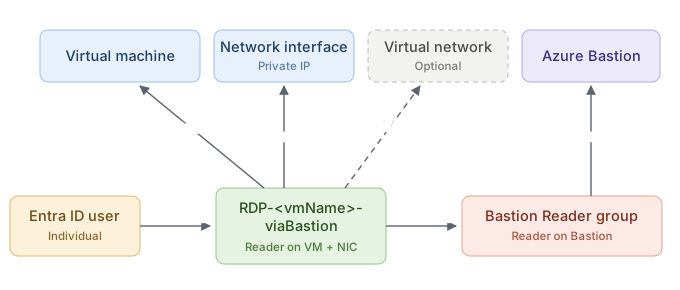
The dashed link is the peered VNet case: only add it if your Bastion lives in a different VNet from the target VM.
AzBastionConnect: launch a Bastion RDP session with native RDP (mstsc.exe)
Opening the Azure portal, locating the VM, selecting Connect, choosing Bastion, and entering credentials for every session quickly becomes repetitive.
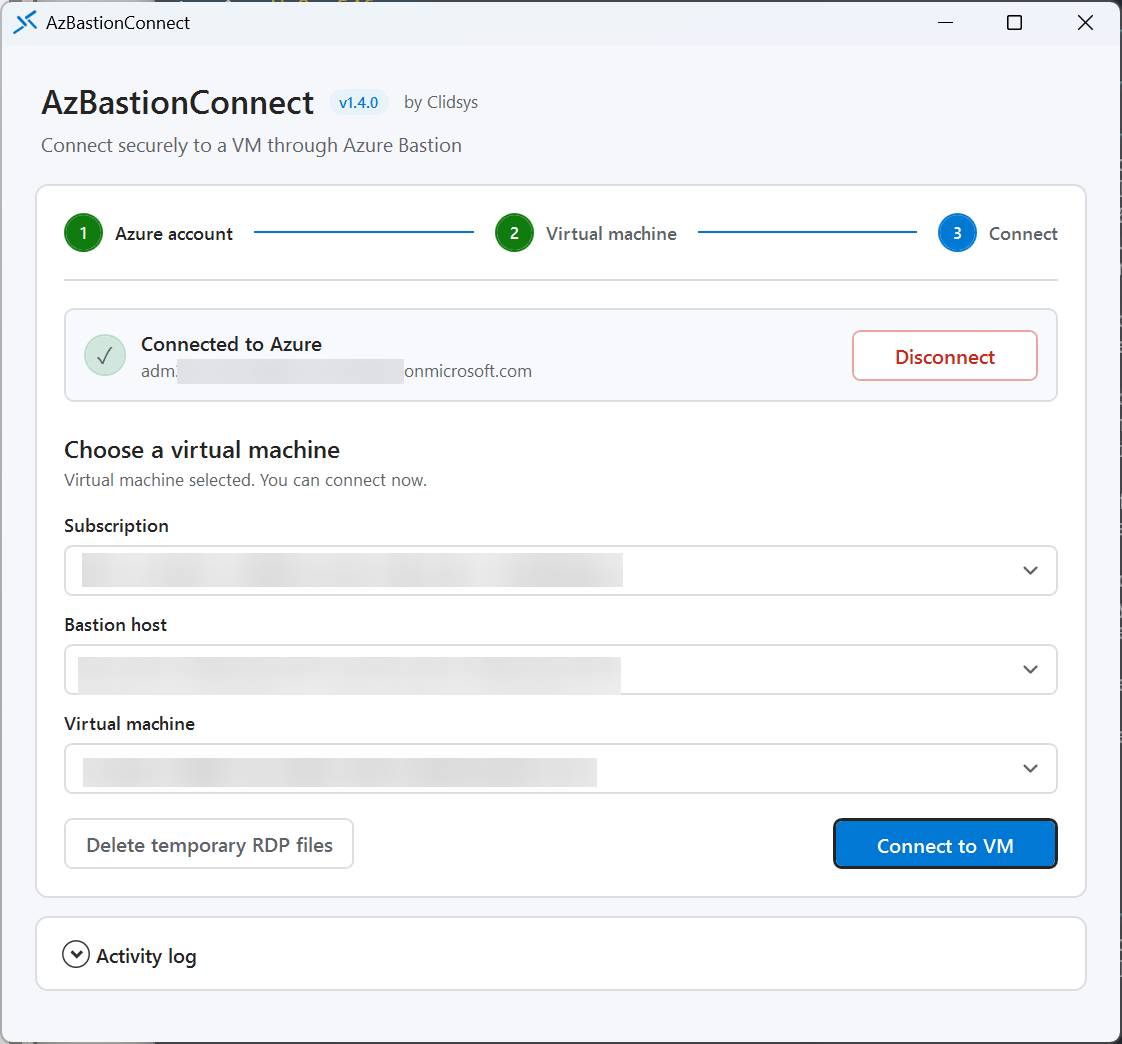
My tool AzBastionConnect tool simplifies this workflow by:
- Resolving the target VM and Bastion resource in the correct Azure subscription
- Opening an authenticated tunnel through the Bastion native client
- Passing the connection to the native Remote Desktop client, mstsc, or to an SSH client
The VM does not expose RDP to the internet. All traffic is routed through Azure Bastion, while you continue using the native Remote Desktop client as usual.

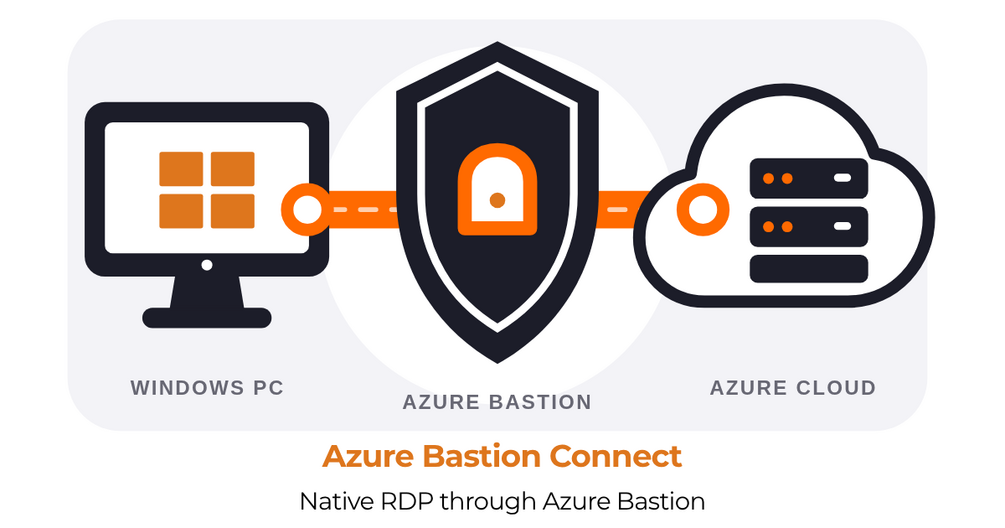
Using the native RDP client preserves capabilities such as clipboard integration and file copying while routing the connection securely through Azure Bastion.
Authentication is handled entirely through the Azure CLI (az login) - no Az PowerShell module involved, and it inherits all the CLI sign-in methods, including device-code authentication.
Wrapping up
Azure Bastion is the cleanest way to reach private Azure VMs without a VPN and without a public IP. The RBAC story is verbose but predictable: four Reader scopes, wrapped in two nested groups, and you are done. From there, automating the connection itself with PowerShell turns a multi-click portal flow into a single command.