
Enabling Default File Opening in Desktop Apps on Microsoft Teams v2

· 1 min read
Table of Contents
No matching heading
The problem
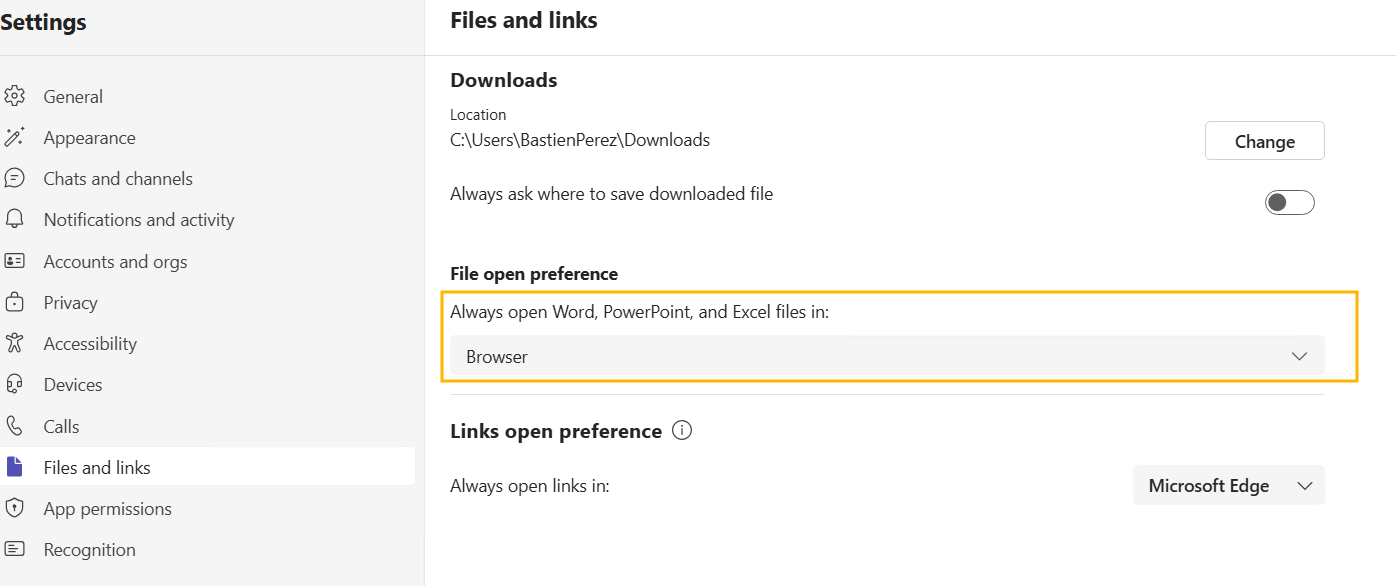
Since the release of Microsoft Teams v2 in 2024, the option to configure default file opening behavior within Teams has been removed, only Teams or Browser can be selected.
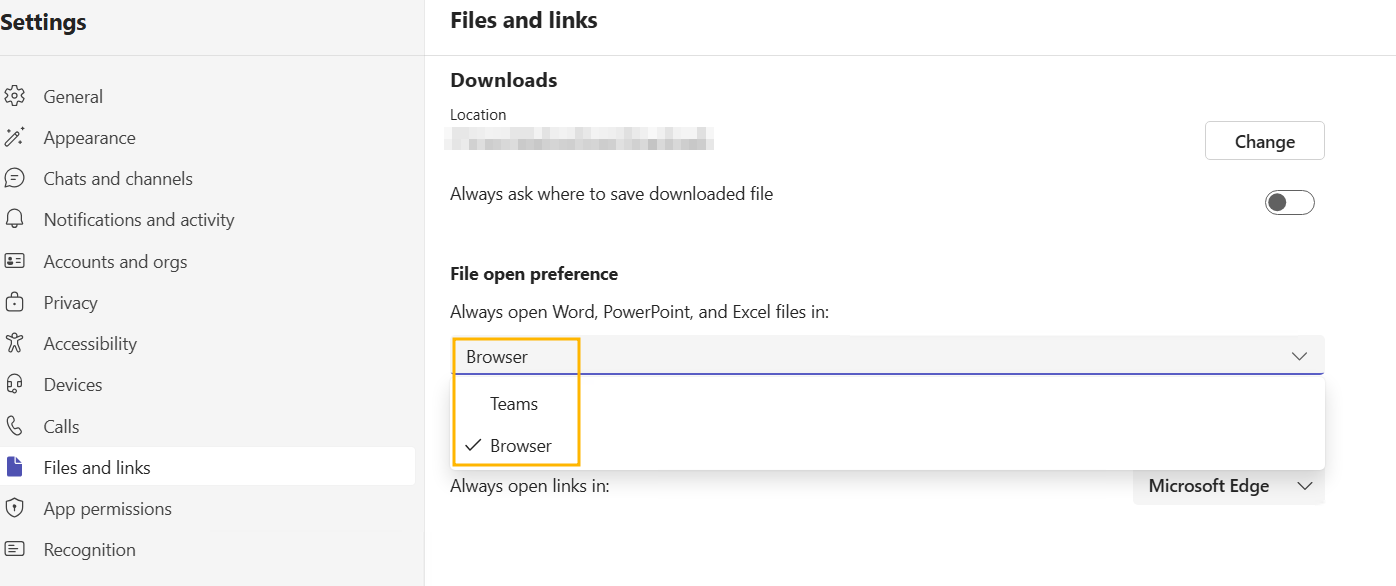
This article explains how to manually modify a configuration file to force files to open in their respective desktop applications.
Open files with Microsoft 365 desktop apps in Teams v2
It is still possible to force files to open in their respective desktop applications by manually modifying a configuration file.
- Completely close Teams (right-click on the Teams icon near the clock > Exit Teams).
- Go to the folder
%localappdata%\Packages\MSTeams_8wekyb3d8bbwe\LocalCache\Microsoft\MSTeams - Open the
app_settings.jsonfile with Notepad or another text editor. - Change
"open_file_in_desktop_app":falseto"open_file_in_desktop_app":true - Save the file.
- Relaunch Microsoft Teams. From now on, files will open by default in their respective desktop applications.
If you prefer a one-liner, I have you covered:
(Get-Content -Path "$env:LOCALAPPDATA\Packages\MSTeams_8wekyb3d8bbwe\LocalCache\Microsoft\MSTeams\app_settings.json") -replace '"open_file_in_desktop_app":false', '"open_file_in_desktop_app":true' | Set-Content -Path "$env:LOCALAPPDATA\Packages\MSTeams_8wekyb3d8bbwe\LocalCache\Microsoft\MSTeams\app_settings.json"Note: If you navigate back to Microsoft Teams settings, you will not see this option reflected because this option is not available in the GUI, but it works as expected.