
Change your Active Directory password without Ctrl+Alt+Del

Table of Contents
No matching heading
If you administer Windows servers through RDP, you know the two small frustrations that come with changing a password.
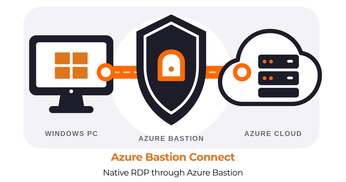
The first one is Ctrl+Alt+Del. Inside an RDP session it never reaches the remote machine, the local OS grabs it. The documented workaround is Ctrl+Alt+End, which works, except on a keyboard without an End key, or through a web-based RDP gateway that intercepts it too.
The second one is the paste. The Windows change-password screen runs on the secure desktop, so you can’t paste into it. That makes password-manager-generated passwords pretty impractical. Typing 24 random characters by hand, twice, into masked fields is a good way to make people choose passwords that are easier to type instead.
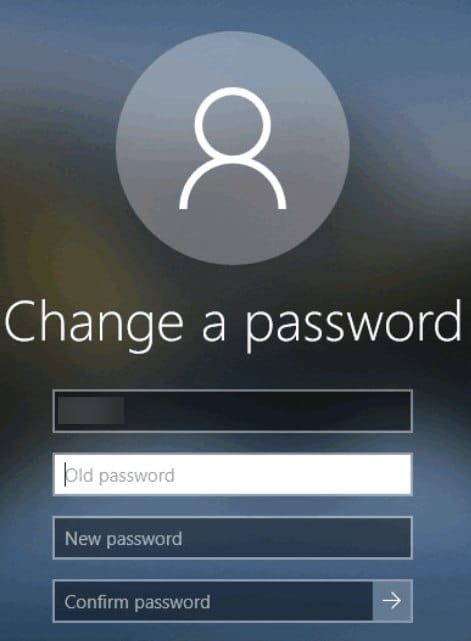
In an RDP session it gets worse, because many hardened environments also disable clipboard redirection. There is then no path at all between your password manager and the remote machine, secure desktop or not.
So I wrote a small tool: AD Password Changer.
What it does
A single window. Your account, when your current password expires, three fields, one button.
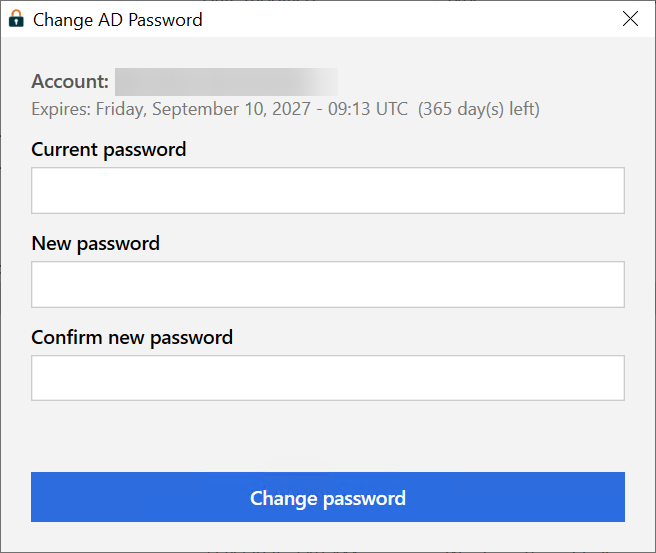
That is the whole tool. It is a WPF form driven by a PowerShell script, compiled into a standalone .exe with ps2exe, so there is no install, no module to import, and no execution policy to argue with.
What it is not
This is a self-service password change, not an admin reset.
You enter your current password, then choose and confirm a new one. The tool changes the password for your own account only. There’s no username field, no admin mode, and no way to target another user.
If you’ve forgotten your password, this tool can’t help. An administrator still has to reset it.
That distinction is intentional. Because it only changes your own password using your existing credentials, it doesn’t need elevated privileges and can be given to ordinary users.
How it works
The tool always targets the account behind the current Windows session, using UserPrincipal.Current. There is no username field and no way to point it at another account.
Before changing anything, it compares the SID returned for that account with the SID of the current Windows identity from WindowsIdentity.GetCurrent(). If they do not match, it stops. In normal use that check should never fire, but it makes the account boundary explicit.
The password change itself goes through UserPrincipal.ChangePassword. It uses the current password supplied by the user and does not require delegation or elevated rights.
The window also shows the password expiry date from msDS-UserPasswordExpiryTimeComputed, so users can see how much time they have left before changing it.
On devices without a domain
The tool requires an on-premises Active Directory domain. On an Entra ID-only device, there is no LDAP directory to connect to, so the password change cannot work.
At startup, it checks the join state with dsregcmd /status. If the machine is not domain-joined, the password fields and the button are disabled and the window explains why.
Errors are always shown in en-US, regardless of the Windows display language. That way, an error copied into a support ticket remains easy to search.
About the password itself
Passwords are never logged or written to disk. The current and new passwords are passed only to ChangePassword.
The domain connection uses PrincipalContext("Domain") without explicit credentials, so .NET uses the current Windows credentials with Negotiate, signing, and sealing. In a domain environment, that means the LDAP session can be authenticated with Kerberos and encrypted at the SASL layer.
This still uses LDAP on port 389, not LDAPS on 636. The confidentiality comes from LDAP sealing, not from TLS on the port.
Active Directory also requires a protected connection for password changes, so an unprotected attempt is rejected rather than silently sending the password in clear text.
Get it
Download ADPasswordChanger.exe from the latest release and run it. Nothing to install.
 bastienperez
If you would rather read the code before trusting a binary that handles passwords, and you should, the whole thing is one PowerShell script:
# run it directly, no build needed
.\ADPasswordChanger.ps1

# or compile your own exe
.\build\build.ps1
build.ps1 installs ps2exe if it is missing and produces dist\ADPasswordChanger.exe.
Sources
- ad-password-changer on GitHub
- UserPrincipal.ChangePassword, the API behind the tool
- msDS-UserPasswordExpiryTimeComputed, the attribute used for the expiry date